Configure PpRx in the GUI
Generate a working .opt and .config pair so PpRx is ready to run on either your captured .bin or a live RadioLion stream.
Background
PpRx needs three inputs to run, and each input plays a distinct role:
- Options (
.opt) file: controls I/O. Which devices and files PpRx reads, which outputs it writes, and where. - Configuration (
.config) file: controls receiver internals. Acquisition, tracking-loop, and estimator tuning. - RF data source: either a live stream from RadioLion, or a
.binfile recorded in the previous tutorial for post-processing (replay mode).
PpRx is highly configurable through the .opt and .config files.
To make initial file generation more approachable, Locus Lock includes a Configuration Generator in the GUI.
Configuration Generator
The Locus Lock GUI includes a Configuration Generator utility. Open it with Run → Open Configuration Generator.
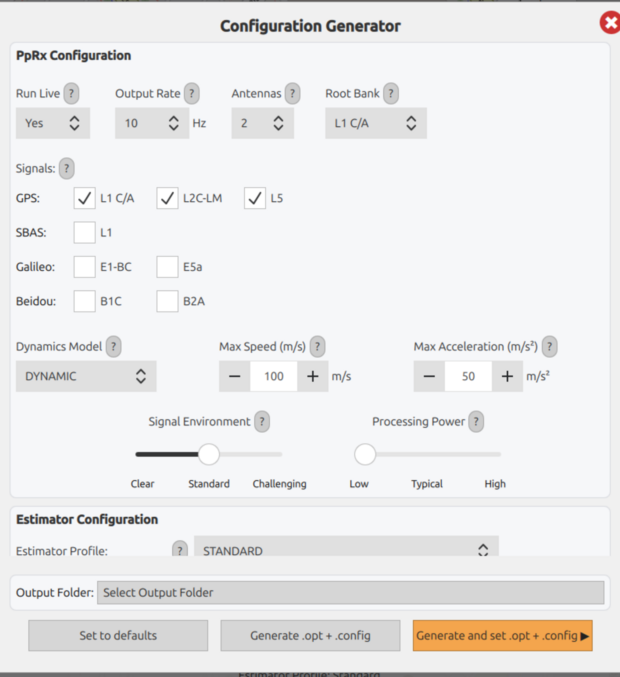
Select the desired settings. Press the ? buttons to open information dialogs relevant to each field.
Choose an output folder where the .opt and .config files will be written.
The Configuration Generator also includes an Estimator Configuration section, where the desired estimator profile is selected. Leave this at its default for standard single-antenna operation. For dual-antenna heading or IMU-aided pose, see Configure for Precision Heading in the GUI.
For low-power host computers (e.g. Raspberry Pi), use the Low Processing Power setting.
Press the Generate and set .opt + .config button to generate and set these files as PpRx inputs within the GUI.
For example, the generator may create files such as autogen_01.opt and autogen_01.config in the selected folder, then immediately load them into the Input/Output Overlay.
Close the Configuration Generator dialog and verify the .opt and .config files are selected in the Input/Output Overlay.
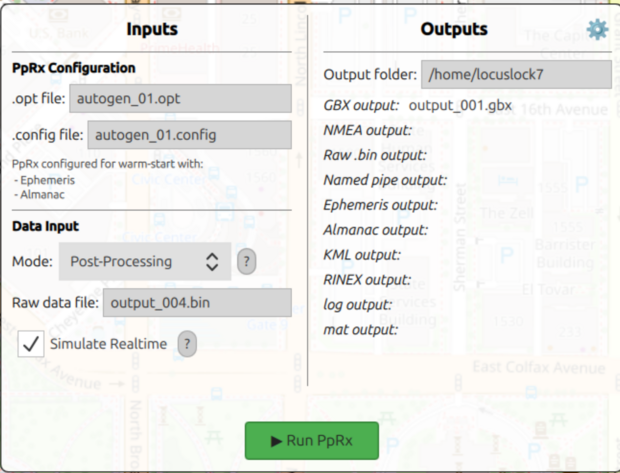
PpRx is now configured to run with the generated .opt and .config files.
You can open and edit these files in a text editor using File → Edit Options File or File → Edit Configuration File from the menu bar.