Software Installation
Get PpRx and the Locus Lock GUI running on your host machine.
Purchased LEO100 with a host computer? PpRx and the GUI come pre-installed. Skim the requirements below if you like, then jump to Phase 3: Beginner Tutorials.
If you purchased LEO100 without a host computer, follow the steps below to install the required software on your own machine.
Prerequisites
Before running the installation scripts, have your Customer ID and/or License ID ready: the scripts will prompt for them. See License Management for details on Customer ID vs. License ID.
Installing inside a Docker container instead? See Set Up PpRx in a Docker Container.
Host Computer Requirements
Locus Lock generally recommends the following specifications for the host computer:
| Spec | Minimum |
|---|---|
| CPU | 64-bit, 4+ cores, 1+ GHz |
| RAM | 2 GB |
| Storage | 5 GB |
| OS | Ubuntu LTS 22.04, 24.04, or 26.04 |
Locus Lock supports all current Ubuntu LTS versions for standard installation. Software builds for other OS or architectures are available, contact support for details.
Installing PpRx
PpRx can be installed with the following command. The installer detects your computer's architecture and operating system, then installs the PpRx build for your environment.
bash -c "$(curl -fsSL https://install.locuslock.com/installer.sh)"
PpRx requires a valid license to run. During installation, the script will prompt for your Customer ID and/or License ID, and ask whether you want to check out a license now. See License Management for details.
Install the Locus Lock GUI
The Locus Lock GUI provides the primary workflow for configuring, verifying, and operating PpRx. GUI-based setup is recommended before moving to CLI-only workflows.
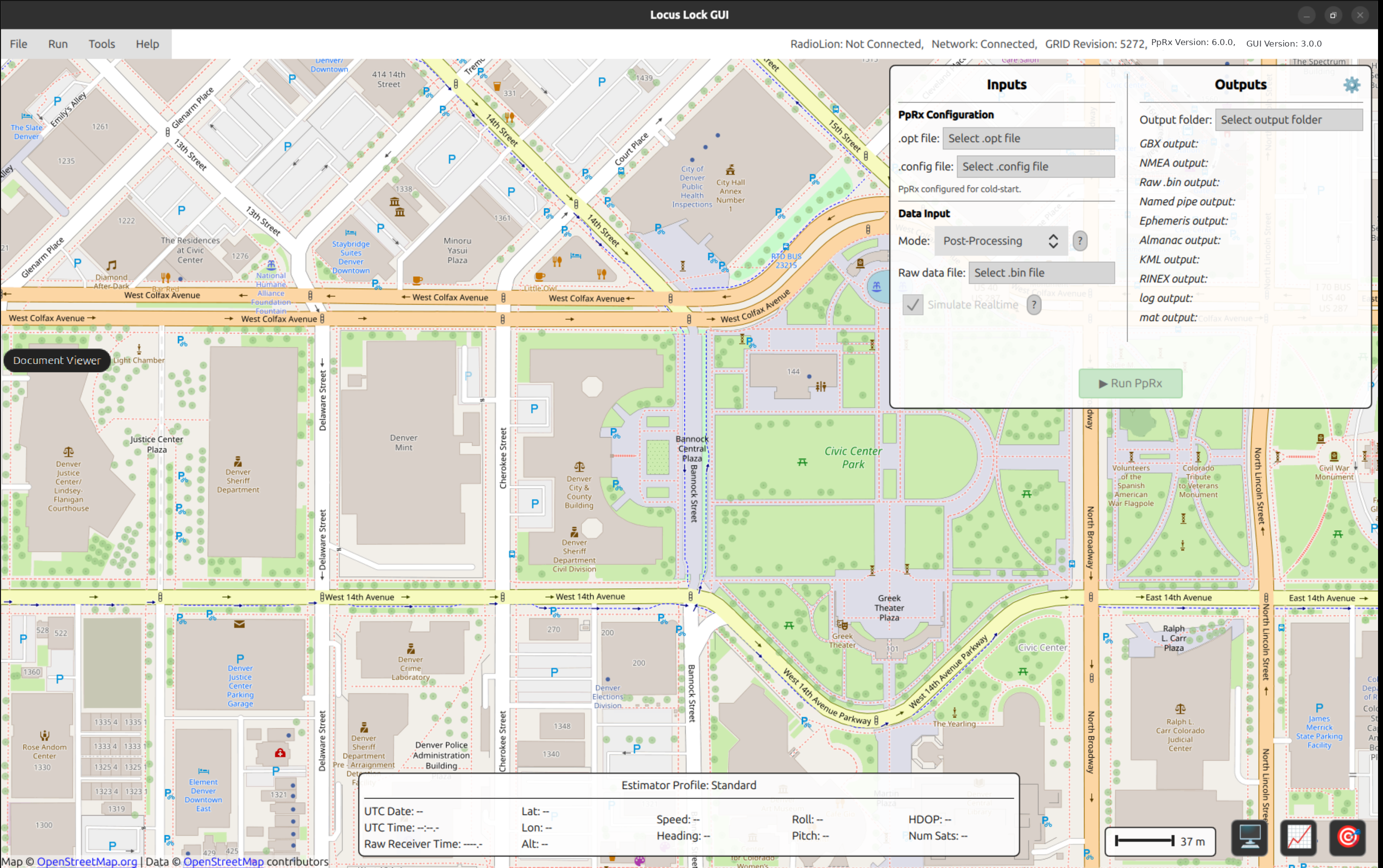
To install the Locus Lock GUI application, run the following command:
bash -c "$(curl -fsSL https://install.locuslock.com/gui_installer.sh)"
For installations on NVIDIA Jetson computers, disabling VSYNC for Qt applications improves GUI performance. Run the following command in a terminal:
echo "QSG_NO_VSYNC=1" | sudo tee -a /etc/environment
Reboot the Jetson for this setting to take effect.