Configure for Precision Heading in the GUI
Learn how to configure PpRx for dual-antenna precision heading or IMU-aided pose in the GUI.
Overview
This tutorial walks through configuring PpRx to output precision heading or a full IMU-aided pose from a dual-antenna RadioLion setup.
Precision heading and IMU-aided pose are enabled by setting ESTIMATOR_PROFILE in the PpRx [ESTIMATOR] block. ESTIMATOR_PROFILE can also be set from the GUI: the Configuration Generator asks which estimator profile you want to use.
A profile is a product-level preset, not a customer-configurable combination of positioning methods, IMU coupling strategies, or filter types. Selecting a dual-antenna or IMU-aided profile adds estimators to the standard navigation solution; it does not replace it.
ESTIMATOR_PROFILE | Standard navigation | Dual-antenna heading | IMU-propagated pose | Requirements |
|---|---|---|---|---|
STANDARD | Yes | No | No | No additional requirements |
STANDARD_DUAL_ANTENNA_HEADING | Yes | Yes | No | PRIMARY and ALT1 antennas; BASELINE_VECTOR_B |
STANDARD_IMU_DUAL_ANTENNA_HEADING | Yes | Yes | Yes | PRIMARY and ALT1 antennas; BASELINE_VECTOR_B; [IMU] configuration |
The [CDGNSS] and [IMU] blocks only matter for the profile that requires them. See CDGNSS and IMU for details.
Prerequisites:
- Two antennas plugged into the RadioLion (PRIMARY and ALT1). Antennas should be statically mounted on the vehicle.
- A measurement of the full body-frame vector between antenna phase centers. Recommended precision is on the order of millimeters.
Measure the baseline consistently between the same antenna phase centers used in the config. Baseline orientation and distance should match the physical installation.
Body-frame convention: PpRx uses a right-handed forward-left-up body frame centered at the phase center of the PRIMARY antenna (positive X forward, positive Y left/port, positive Z up). See PpRx Estimator Profiles for the full convention.
Configure via the GUI
Open the Configuration Generator and scroll to the Estimator Configuration section. Select the desired Estimator Profile from the dropdown.
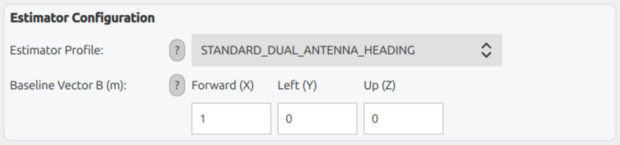
For dual-antenna heading (no IMU), select STANDARD_DUAL_ANTENNA_HEADING and enter the baseline vector between the PRIMARY and ALT1 antennas, in the forward-left-up body frame:
For a full IMU-aided pose, select STANDARD_IMU_DUAL_ANTENNA_HEADING. This adds fields for the IMU's position and orientation in the body frame, and the IMU hardware in use:
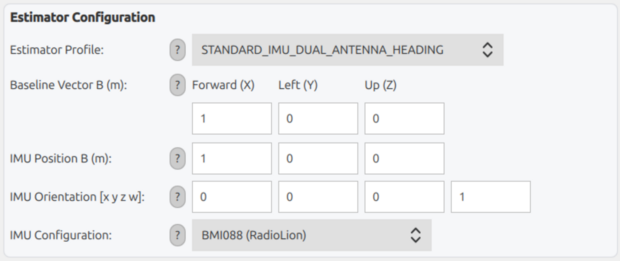
For the body-frame convention and how to express POS_IMU_B and ORIENTATION_IMU_B (including quaternion component order), see Body Frame and IMU Orientation Reference.
Generate and set the .opt/.config files as usual. The GUI writes the corresponding ESTIMATOR_PROFILE, baseline, and [IMU] parameters described below.
To configure for CLI use, inspect the generated .opt/.config files to see how the GUI expresses these settings, and cross-reference against the example blocks under Estimator Profiles.
Expected Result
Once a solution is obtained, check the information window at the bottom of the GUI. For dual-antenna heading (no IMU), the information window only reports Heading:

For a full IMU-aided pose, the information window reports Heading, Roll, Pitch, and Yaw:

For the full parameter reference (tuning, [CDGNSS] settings, vehicle-velocity and zero-velocity constraints), see PpRx Estimator Profiles.