User Preferences in the GUI
The User Preferences dialog allows you to configure input/output reload behavior and map display settings for the Locus Lock GUI.
Navigate to File → User Preferences in the menu bar to open the dialog.
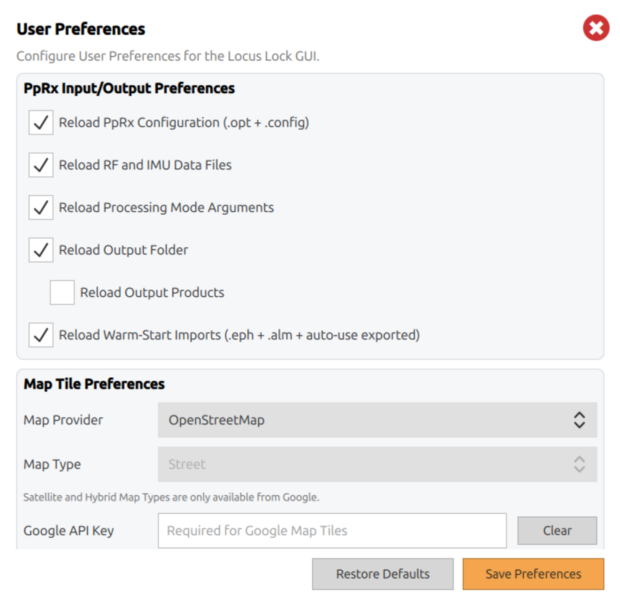
Click Save Preferences to apply any changes. Click Restore Defaults to reset all fields to their default values.
PpRx Input/Output Preferences
Controls which PpRx settings are restored from the previous session when the GUI is reopened.
| Field | Default | Description |
|---|---|---|
| Reload PpRx Configuration (.opt + .config) | Enabled | Restores the previously used PpRx .opt and .config file paths on GUI startup. |
| Reload RF and IMU Data Files | Enabled | Restores the previously used raw RF .bin and IMU data file inputs on GUI startup. |
| Reload Processing Mode Arguments | Enabled | Restores the previously used processing mode arguments on GUI startup. |
| Reload Output Folder | Enabled | Restores the previously used output folder path on GUI startup. |
| Reload Output Products | Disabled | When enabled, restores the previously selected output products on GUI startup. |
| Reload Warm-Start Imports (.eph + .alm + auto-use exported) | Enabled | Restores the previously selected ephemeris and almanac import files, and the Automatically use exported .eph and .alm files setting, on GUI startup. |
Map Tile Preferences
Controls how map tiles are fetched, cached, and displayed in the GUI. By default, the GUI uses OpenStreetMap (OSM). Switch to Google Maps to access Satellite or Hybrid view.
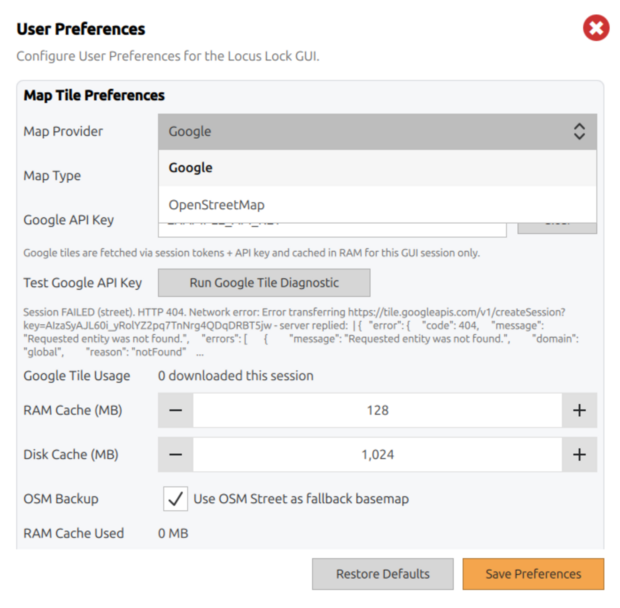
Switching to Google Maps
Google Maps requires a valid API key. Review Google Maps Platform pricing and terms before proceeding, as tile usage may incur costs against your Google Cloud account.
Step 1: Generate a Google Maps API Key
If you already have a Google Maps API key, skip to Step 2.
- Go to Google Maps Platform and log in or create an account.
- Navigate to Keys & Credentials in the sidebar.
- Select API key from the Create Credentials dropdown.
- Copy and store the key somewhere safe.
Step 2: Set the Map Provider and Map Type
- Set Map Provider to Google.
- Set Map Type to Street, Satellite, or Hybrid.
- Paste your API key into the Google API Key field.
Step 3: Validate the API Key
Click Run Google Tile Diagnostic. A successful result displays: 'Session OK (hybrid). HTTP 200'
If the diagnostic fails, verify the key is correct and that the Maps JavaScript API and Map Tiles API are enabled in your Google Cloud project.
Step 4: Save Preferences
Click Save Preferences. The map will reload with the new settings.
Map Tile Preference Fields
| Field | Default | Description |
|---|---|---|
| Map Provider | OpenStreetMap | Tile source: OpenStreetMap (no key required) or Google (requires API key). |
| Map Type | Street | Visual style: Street (OSM or Google), Satellite or Hybrid (Google only). |
| Google API Key | — | Authenticates Google tile requests. Cached in RAM for the session only. Use Clear to remove. |
| Test Google API Key | — | Runs a live tile fetch to validate the entered API key. A successful result displays Session OK. HTTP 200. |
| Google Tile Usage | — | Number of Google tiles downloaded this session. Resets on GUI restart. |
| RAM Cache (MB) | 128 | RAM allocated for caching map tiles during a session. Reduces redundant network fetches. |
| Disk Cache (MB) | 1,024 | Disk space reserved for persisting tile cache across sessions. |
| OSM Backup | Enabled | When enabled, falls back to OSM Street tiles if the primary provider is unavailable. |
| RAM Cache Used | — | Read-only display of current RAM cache consumption. |
| Disk Cache Used | — | Read-only display of current disk cache consumption. Use Clear Map Tile Cache to flush. |
Offline Maps (OSM only)
Enables downloading OSM tiles for offline use. Only available when OpenStreetMap is selected as the map provider.
Tile downloads will be interrupted if the GUI goes offline during the download.
| Field | Default | Description |
|---|---|---|
| Offline Min Zoom | 12 | Minimum zoom level to include in the offline tile download. Lower values cover larger areas at less detail. |
| Offline Max Zoom | 18 | Maximum zoom level to include in the offline tile download. Higher values capture more detail but require significantly more storage. |
| Offline Cache (MB) | 1,024 | Maximum disk space allocated for the offline tile cache. |
| Estimated Download | — | Estimated size of the offline tile download for the current map view and zoom range. Displays Unavailable when Google is selected as the map provider. |
| Offline Cache Used | — | Read-only display of current offline cache consumption. |
| Clear Offline Map | — | Deletes the offline tile cache. |
| Download Offline Map | — | Starts downloading tiles for the current map view at the configured zoom range. |