Warm Start PpRx
Learn how to import and export ephemeris and almanac files using PpRx.
Overview
A warm start allows PpRx to begin with previously collected navigation data instead of waiting
for bits over the RF stream. In practice, this means exporting ephemeris
(.eph) and almanac (.alm) files during one run, then importing those files into the next run.
Ephemeris files can also be downloaded from the internet using the GUI.
Importing ephemeris has the largest effect on time-to-first-fix (TTFF): it lets PpRx compute a position as soon as it has pseudorange measurements, instead of waiting to demodulate ephemeris data from the signal's navigation message bitstream (which can take tens of seconds). Importing almanac data shortens acquisition instead, by narrowing which satellites and signals PpRx searches for first.
This tutorial covers warm start procedures using both the GUI and CLI. These workflows are most useful when the same system is restarted repeatedly in the field or when PpRx settings are being iterated during post-processing or development.
This tutorial covers warm starting with imported ephemeris and almanac data. The same .opt
pattern can be used whether PpRx is launched directly from the CLI or through a service that
points to the same .opt file.
Ephemeris data is typically only useful within a few hours of capture time. In practice, use the newest available .eph file for the next run. Expired ephemeris data is ignored by PpRx.
Export Warm Start Data from the GUI
Ephemeris and almanac information can be exported from the GUI by configuring the relevant output products in the Output Configuration dialog. See Configure PpRx Outputs in the GUI.
The ephemeris (.eph) and almanac (.alm) files will be written to the configured output folder.
Download Ephemeris Data in the GUI
The GUI can download ephemeris data (GPS and Galileo only) from relevant NASA websites.
This feature requires an internet connection and can be accessed by selecting Run → Configure PpRx Warmstart
from the menu bar.
To download ephemeris data:
- Select an output folder for the
.ephfile. - Choose a
.ephoutput file name (for exampleoutput_ephemeris). - Select the desired ephemeris time using the GPS Week, TOW, UTC Date, and UTC TOD fields.
- Press
Download .ephto download data only, orDownload + Set .ephto download and set the ephemeris data.
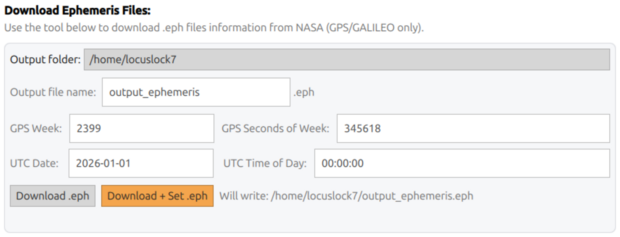
Ephemeris data will be written to the output folder.
Import Ephemeris and Almanac Data from the GUI
Open the Configure PpRx Warmstart dialog by selecting Run → Configure PpRx Warmstart. Both ephemeris and almanac data can be imported from the GUI.
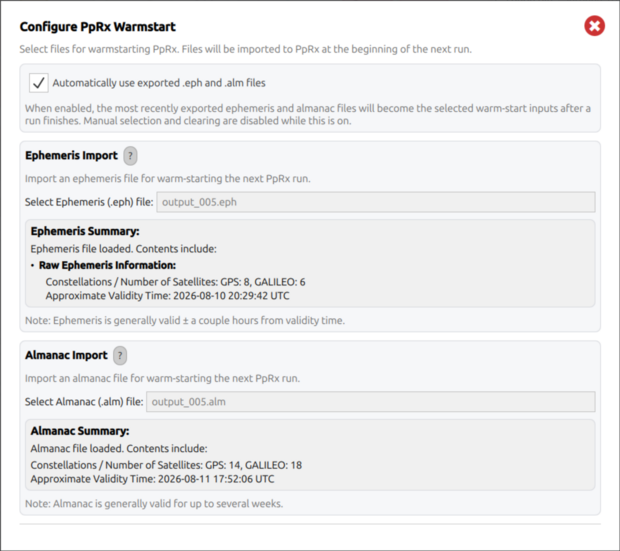
To import ephemeris and/or almanac data during the next PpRx run in the GUI:
- Under Ephemeris Import, press
Select Ephemeris (.eph) fileand choose the desired.ephfile. Under Almanac Import, pressSelect Almanac (.alm) fileand choose the desired.almfile. - The GUI parses and displays a summary of each selected file (constellations, satellite counts, and approximate validity time). Verify it looks correct.
- Close the Configure PpRx Warmstart dialog window. In the Input/Output overlay, a small text message should confirm that PpRx is configured for warm start with the selected ephemeris and/or almanac information.
- Run PpRx.
The Automatically use exported .eph and .alm files toggle, when enabled, sets the most recently exported ephemeris and almanac files as the warm start inputs for the next run automatically, once the current run finishes. Manual file selection and clearing are disabled while this is on.
Export Warm Start Files from the CLI
Start from a working .opt file and add export options for ephemeris and almanac data:
-i /dev/radiolion0
--imu-file /dev/radiolion1
-c ./autogen_01.config
-t -1
--bitpack lion
-o ./output/pprx.gbx
--export-ephem ./output/warmstart.eph
--export-alm ./output/warmstart.alm
--exp-interval 60
Relevant options:
--export-ephemwrites ephemeris data for reuse on a later run.--export-almwrites almanac data for reuse on a later run.--exp-intervalperiodically updates exportable navigation data while PpRx is running.
Let the run finish normally, or stop it with Ctrl+C. By default, PpRx also writes these files
when a run completes cleanly. If the process is terminated without normal shutdown, the final
export may not be written.
Import the Files from the CLI
Once recent warm start files are available, add the import options to the next PpRx startup:
pprx -f ./autogen_01.opt \
  --import-ephem ./output/warmstart.eph \
  --import-alm ./output/warmstart.alm \
  -o ./output/pprx_out.gbx
Alternatively, add the same import options directly to the .opt file:
--import-ephem ./output/warmstart.eph
--import-alm ./output/warmstart.alm
Warm starts are most effective when the imported files are recent and were captured close in time to the next run.
After importing ephemeris on a warm start, transmitter identifiers (TXID) in the PpRx Display may still show a ? decoration (health status unknown) on some satellites, even though ephemeris was imported successfully. This is normal. The ? flag is cleared only once the satellite health status has been received over the RF signal, not from the .eph file. It does not indicate that the import failed, and those channels will still contribute to the navigation solution once locked.
Configure PpRx for Auto Warm Start using the .opt file
PpRx can be configured to warm start automatically upon start up. With this configuration PpRx will overwrite the almanac and ephemeris files at the end of every run, and import those files in the following run. Auto Warm Start is most effective when consecutive PpRx runs are close in time, ensuring relevant almanac and ephemeris data.
To enable Auto Warm Start, add the import and export options directly to the PpRx .opt file:
--import-ephem ./output/warmstart.eph
--import-alm ./output/warmstart.alm

--export-ephem ./output/warmstart.eph
--export-alm ./output/warmstart.alm
These options will ensure that ephemeris and almanac data will be imported at the start of every run and written at the end of every run.
There must be pre-existing files at the paths specified by --import-ephem and --import-alm before the first run. On the very first run, either export the files from a prior PpRx session, or remove the import lines from the .opt file until at least one export run has completed.
Warm Start File Validity
| File | Typical useful lifetime | Notes |
|---|---|---|
.eph (ephemeris) | 2–4 hours | PpRx silently ignores records past their fit interval; very stale files add no benefit but do not cause errors |
.alm (almanac) | Days to weeks | Almanac data changes slowly; older files still reduce acquisition search space |
Expected Result
PpRx can be restarted using previously exported .eph and .alm files, reducing time-to-first-fix by
avoiding the wait to demodulate ephemeris data over the RF signal, and reducing acquisition time by
narrowing the initial satellite search with almanac data.