Analyze and Convert GBX Files
Learn how to export GBX files from the GUI using the Export GBX as... dialog window.
Then, learn to inspect or convert GBX files from the CLI with Binflate.
Binflate is included with all PpRx licenses. To verify the installation, run:
which binflate
binflate --version
Overview
GBX files are compressed binaries containing a range of processed GNSS data, including observables, ephemeris, and final position and timing solutions. GBX files are the primary output format of PpRx. See the GBX Protocol Description for the binary wire format.
A .gbx file produced by a PpRx run can be exported to other file types containing this information.
This can be done either in the GUI or via the CLI.
Exporting GBX Files in the GUI
Open the Export GBX dialog in the GUI by selecting File → Export GBX as… in the menu bar.
After selecting a .gbx file to export and an output folder for the file or files, entering an output
filename will populate filenames for each selected output product, as shown below:
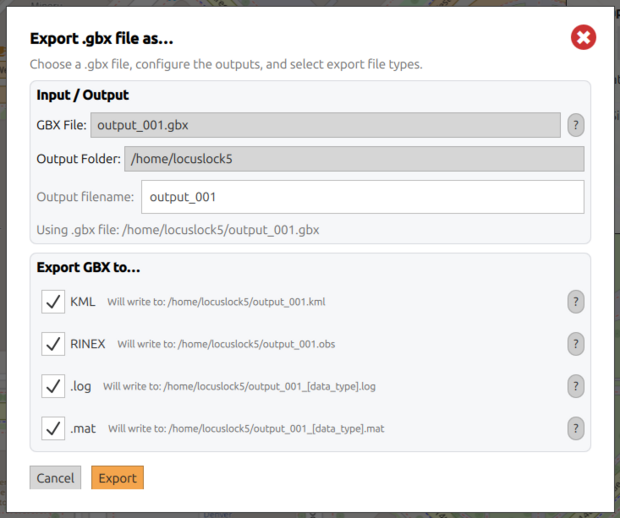
Selecting the Export button will create the desired output products in the output folder.
Exporting GBX Files in the Command Line with Binflate
The same operations can be completed in the CLI using the binflate utility included in the software installation.
To inspect the available arguments:
binflate --help
Suppose there is a pprx.gbx file in the current directory. Common conversions include:
binflate -i pprx.gbx -s rin
    # Export RINEX 2.11 output

binflate -i pprx.gbx -s kml
    # Export KML for map visualization (for import to Google Earth Pro)

binflate -i pprx.gbx -s log
    # Export log (.csv) files

binflate -i pprx.gbx -s mat
    # Export MATLAB `.mat` files
Depending on the selected conversion, files such as grid.obs, standard.kml, channel.log, and navsol.mat will be created in the current directory.
Analyzing GBX Files in the Command Line with Binflate Interactive Mode
Binflate also provides an interactive mode, which allows rapid inspection
and debugging on embedded systems. Interactive mode is activated by passing the
-x argument. For example:
binflate -i pprx.gbx -x
    # Open `pprx.gbx` in interactive mode
――――――――――――――― GRID: General Radionavigation Interfusion Device ――――――――――――
         RRT:      0 weeks      0.1 seconds   Build ID:   5272
         ORT:   9999 weeks     -1.0 seconds
―――――――――――――――――――――――――――――――――――――――――――――――――――――――――――――――――――――――――――
CH  TXID    Doppler        BCP           PR       C/N₀     Az     El    CS
             (Hz)       (cycles)      (meters)  (dB-Hz)  (deg)  (deg)
―――――――――――――――――――――――――――― GPS_L1_CA_PRIMARY ――――――――――――――――――――――――――――
 1    1?     1524.3  -------------  -----------   44.2   -----   ----   3*
 2    2?     -425.3  -------------  -----------   45.1   -----   ----   3*
 3   13?     -676.1  -------------  -----------   40.9   -----   ----   3*
 4   10?    -2092.4  -------------  -----------   48.3   -----   ----   3*
 5   12?      -18.7  -------------  -----------   45.6   -----   ----   3*
 6   25?     1418.1  -------------  -----------   45.1   -----   ----   3*
 7   31?     3064.0  -------------  -----------   46.3   -----   ----   3*
 8   28?      988.5  -------------  -----------   46.1   -----   ----   3*
―――――――――――――――――――――――――――― GPS_L2_CLM_PRIMARY ―――――――――――――――――――――――――――
 1   --   ---------  -------------  -----------   ----   -----   ----   -
 2   --   ---------  -------------  -----------   ----   -----   ----   -
 3   --   ---------  -------------  -----------   ----   -----   ----   -
 4   --   ---------  -------------  -----------   ----   -----   ----   -
 5   --   ---------  -------------  -----------   ----   -----   ----   -
 6   --   ---------  -------------  -----------   ----   -----   ----   -
―――――――――――――――――――――――――――― GPS_L5_IQ_PRIMARY ――――――――――――――――――――――――――――
 1   --   ---------  -------------  -----------   ----   -----   ----   -
 2   --   ---------  -------------  -----------   ----   -----   ----   -
 3   --   ---------  -------------  -----------   ----   -----   ----   -
 4   --   ---------  -------------  -----------   ----   -----   ----   -
 5   --   ---------  -------------  -----------   ----   -----   ----   -
 6   --   ---------  -------------  -----------   ----   -----   ----   -
―――――――――――――――――――――――――――― Standard Solution ――――――――――――――――――――――――――――
PX:        0.00  PY:        0.00  PZ:        0.00      δtR:         0.00
VX:        0.00  VY:        0.00  VZ:        0.00   δtRdot:         0.00
Hσ:        0.00  Vσ:        0.00  εν:        0.00
―――――――――――――――――――――――――――――――――――――――――――――――――――――――――――――――――――――――――――
To exit Binflate, press Ctrl+C.
Commands can be listed while in interactive mode using help.
> help
Commands:
  next ........... continue to next epoch
  prev ........... rewind to previous epoch
  goto ARG ....... go to ARG seconds (RRT)
  jump ARG ....... jump by ARG seconds (can be negative)
  setpause ARG ... set pause to ARG milliseconds
  quit ........... quit
Processing Binflate .log and .mat Files
Processing .log and .mat files may be useful for receiver performance analysis.
The .log files are CSV outputs that can be loaded into applications such as Microsoft Excel or Google Sheets.
The .mat files can be imported into MATLAB using, for example:
load channel.mat;
channel = channel';  % Transpose to put in columnar format
The column formats are the same for all .log and .mat file products produced by Binflate.
Formats are defined in the following text files:
-
attitude2d.txt -
channel.txt -
display.txt -
iono.txt -
iq.txt -
iqtaps.txt -
navsol.txt -
poseandtwist.txt -
sbrtk.txt -
scint.txt -
txinfo.txt
When processing data, the mapping between signals and GenericTypes may also be required and is available here.
Notes
- The RINEX format is useful for porting PpRx outputs to external PPP processing tools such as CSRS-PPP.