Check Installation
Verify that PpRx is installed correctly and that the RadioLion enumerates on your host. You're done when the GUI shows RadioLion as Connected and two /dev/radiolion* nodes appear in the CLI.
Check Installation in the GUI
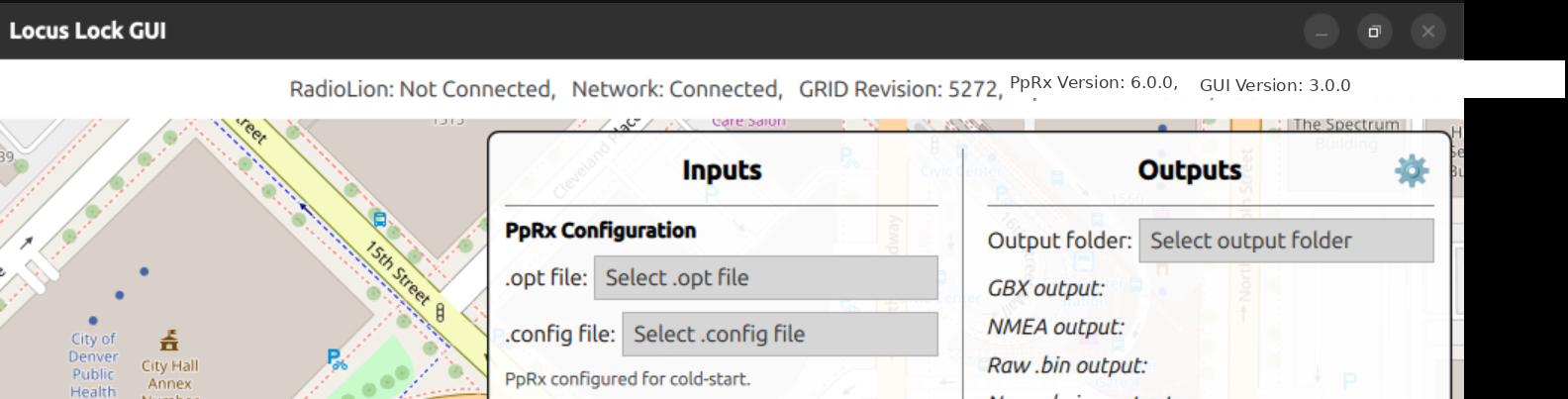
Open the GUI and verify the following:
- PpRx Version is not "Unknown"
- RadioLion shows as "Connected" when plugged in.
Below is an example of the GUI with RadioLion plugged in.
Check Installation in the CLI
To verify proper software installation via CLI, open a terminal and run:
pprx --version
To verify that the RadioLion is connected over USB, check for the Linux devices:
ls /dev/rad*
Two device nodes should appear, for example radiolion0 and radiolion1. The device nodes may enumerate higher on some systems (e.g. radiolion1 and radiolion2). This is normal. The lower-numbered node is always the RF stream and the higher-numbered node is the IMU stream.
For live CLI operation, ensure that the .opt file points to the correct radiolion device-node numbers for the host system.
If the expected device nodes do not appear, see Troubleshooting Tips.